Windows Update stuck at the same percentage, failing with an error code, or “undoing changes” every time you restart: it’s frustrating, but rarely serious. Work through these steps in order and stop as soon as the update installs.
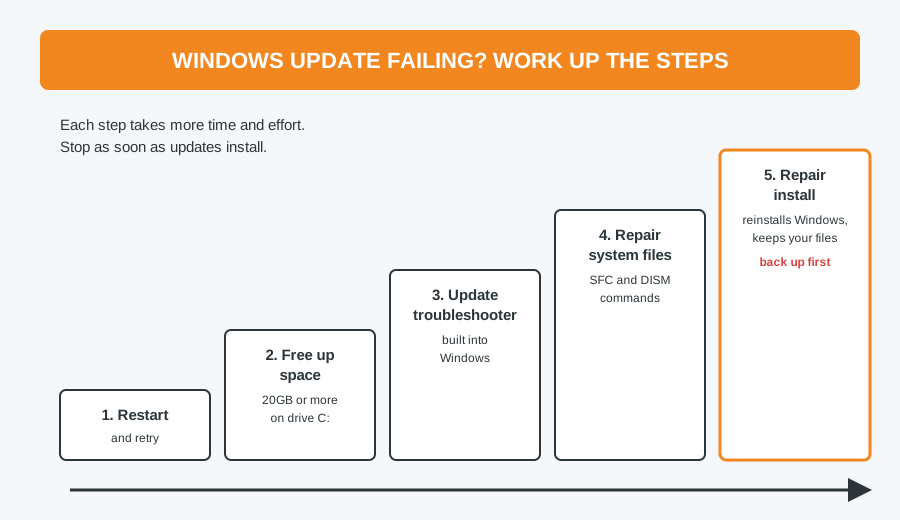
1. Restart and try again
Many updates need a restart before the next one can install. Choose Restart rather than Shut down, then go to Settings > Windows Update and select Check for updates. If it fails again, note the error code (for example 0x800f0922). Searching for the code on Microsoft’s support site often points straight to the cause.
2. Free up disk space
Updates need room to download and unpack, and the larger yearly feature updates need a lot of it. Aim for at least 20GB free on drive C:. Go to Settings > System > Storage > Temporary files, or search for Disk Cleanup and choose Clean up system files. Unplug any USB memory sticks and external drives you don’t need while the update runs.
3. Run the Windows Update troubleshooter
In Windows 11, go to Settings > System > Troubleshoot > Other troubleshooters and select Run next to Windows Update. On newer versions it opens in the Get Help app. In Windows 10, it’s under Settings > Update & Security > Troubleshoot > Additional troubleshooters.
4. Repair damaged system files
Corrupt system files are one of the most common causes of failed updates. Right-click Start, choose Terminal (Admin) or Command Prompt (Admin), and run these two commands one after the other:
DISM /Online /Cleanup-Image /RestoreHealthsfc /scannow
Each can take 10 to 20 minutes. Run DISM first, because it repairs the files that SFC uses to fix Windows. Restart when both have finished and try the update again.
5. Do a repair install
If nothing else works, Windows can reinstall itself while keeping your files, apps and settings. In Windows 11, go to Settings > System > Recovery and choose Reinstall now next to “Fix problems using Windows Update”. Alternatively, Microsoft’s Windows 11 download page offers an installer that gives you the option to keep your personal files and apps.
It is designed to keep your data, but back up your files first just in case.
What not to do
- Don’t switch off during “Working on updates”. Cutting the power mid-install can leave Windows unable to start. Large updates can take an hour or more.
- Don’t download “update fixer” or registry cleaner tools from adverts. At best they do nothing; at worst they cause more damage.
- Don’t ignore repeated failures. A PC that isn’t updating is missing security fixes.
If a failed update has left you with a blue error screen, see our guide to the Blue Screen of Death.
Need a hand? Call in or book a repair
If updates still fail after all five steps, or the failures come with blue screens, freezing or a very slow PC, it can point to a failing drive or deeper system damage. Our Windows installation and repair service sorts it out, with £40 labour (£50 for Apple).
Computer Repair Bolton
30 Church Road, Bolton
07538 513 916
support@computer-repair-bolton.co.uk
Book a repair online