
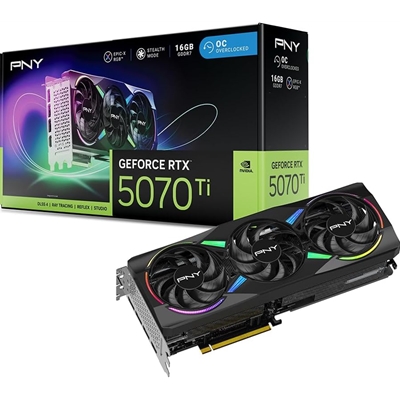
Installing a new graphics card is a pretty straightforward process, but it requires some care to avoid damaging your hardware. Here’s a general guide to help you through the process:
What You’ll Need:
- The new graphics card (obviously!)
- A screwdriver (typically a Phillips head)
- A static-free workspace (make sure to discharge any static from your body by touching a metal object or using an anti-static wristband)
- Your PC’s power cable and monitor cable
- Drivers for the new GPU (you can download them from the manufacturer’s website)
Step-by-Step Guide:
- Turn off your PC and unplug it
Disconnect the power cable and all peripheral devices (keyboard, mouse, monitor, etc.). This ensures safety during the installation process. - Open your PC case
Depending on your case, you may need to remove screws or press latches to open the side panel. - Locate the PCIe slot
Find the PCIe x16 slot on your motherboard, which is usually the longest slot and often situated closest to the CPU. This is where the graphics card will go. - Remove the old card (if applicable)
If you’re replacing an old graphics card, undo the screw securing the card to the case and gently remove it from the PCIe slot. - Install the new graphics card
Line up the gold contacts of the new card with the PCIe slot, and carefully insert it, applying even pressure until it clicks into place. It should sit snugly in the slot. Secure it to the case with a screw. - Connect the power cables
Most modern graphics cards require additional power connectors (6-pin, 8-pin, or both). If your card has these, connect them from your power supply. Make sure they are plugged in securely. - Reconnect cables and close the case
After securing the card, reconnect your monitor cable to the new GPU. Then close up the case and reattach the side panel. - Power on the PC
Plug the power cable back in and turn your PC on. You should see the computer boot up with the new graphics card installed. If there’s no display or the PC doesn’t power on, double-check the connections and ensure the card is seated properly in the PCIe slot. - Install the drivers
Once your system is booted up, go to the GPU manufacturer’s website (NVIDIA, AMD, etc.) and download the latest drivers for your specific model. Install them and restart your PC. - Test the card
Once the drivers are installed, you can test the card by running a game or benchmark software. If everything’s running smoothly, you’re good to go!
Troubleshooting:
- No display?
Ensure the card is fully seated in the PCIe slot and that the power connectors are properly attached. - PC not booting?
Check that all cables are properly connected. Make sure the power supply is sufficient for the new card (higher-end GPUs can require more wattage). - Screen flickering or artifacts?
This could be a sign of a driver issue, so try reinstalling the graphics drivers.