Locked out of your own computer? Don’t panic, and don’t reset the PC: resetting Windows can wipe everything on it. The way back in depends on which kind of account you sign in with, and in most cases you can do it yourself in a few minutes.
Which kind of account do you have?
Look at the sign-in screen. If it shows an email address, you use a Microsoft account. If it shows just a name, it’s a local account.
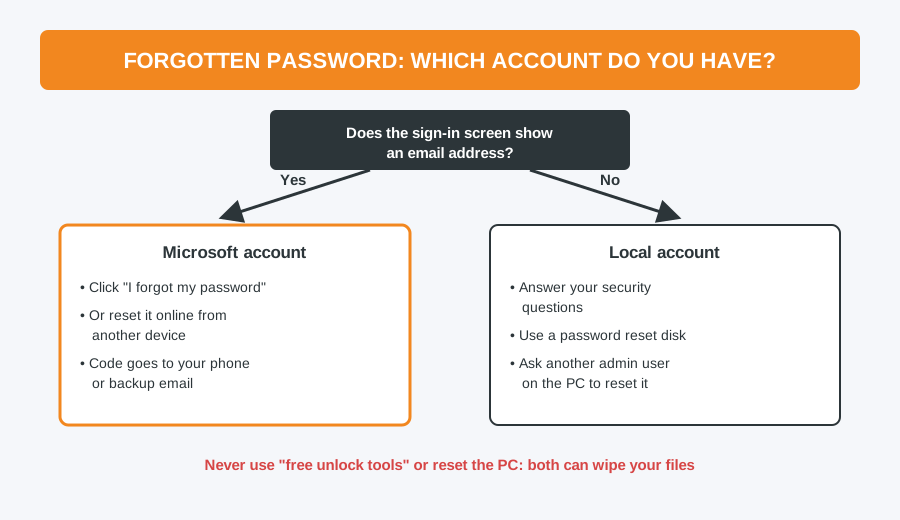
Microsoft account: reset it online
- On the sign-in screen, select I forgot my password. You may need to enter a wrong password once for it to appear.
- Alternatively, on your phone or another computer, go to account.live.com/password/reset.
- Microsoft sends a code to your phone or backup email address. Enter it and choose a new password.
- Make sure the locked computer is connected to the internet (the Wi-Fi icon is on the sign-in screen) so it picks up the new password.
If you normally sign in with a PIN and have forgotten that instead, select I forgot my PIN. It uses your Microsoft account password to set a new one.
Local account: three ways back in
- Security questions. Windows 10 and 11 ask three security questions when a local account is created. After a wrong password, select Reset password and answer them.
- Password reset disk. If you made one, plug in the USB stick and select Reset password.
- Another administrator. Someone with an administrator account on the same PC can sign in and change your password from Control Panel > User Accounts > Manage another account. Be aware that resetting it this way can lose some saved passwords and any files you encrypted with Windows’ own file encryption.
Watch out for BitLocker
Many newer laptops switch on device encryption automatically. If anyone tries to bypass the password with outside tools or removes the drive, Windows will ask for a 48-digit recovery key, and without it the data can’t be read. If the PC is linked to a Microsoft account, the key is saved at aka.ms/myrecoverykey. Check it’s there now, while you can still sign in.
What not to do
- Don’t use “Reset this PC”. “Remove everything” deletes your files, and even “Keep my files” removes your installed programs.
- Don’t download free “password unlocker” tools. Many carry malware, and some can leave the system unable to start.
- Don’t keep guessing on a work or school laptop. Too many attempts can lock the account; contact your IT department instead.
Once you’re back in
- Add a mobile number and backup email to your Microsoft account, so resetting is easy next time.
- For a local account, create a password reset disk from Control Panel > User Accounts.
- Protect your email account as well with two-factor authentication.
- Back up your files, so a lockout never puts them at risk.
Need a hand? Call in or book a repair
If none of these work, we can get you back into a local account without erasing your photos and files, and recover your data if the worst has happened. We’ll ask you to confirm the computer is yours. Labour is £40 (£50 for Apple), and our data recovery service is there if you need it.
Computer Repair Bolton
30 Church Road, Bolton
07538 513 916
support@computer-repair-bolton.co.uk
Book a repair online