A desktop PC came into the workshop with an intermittent blue screen: CRITICAL_PROCESS_DIED, stop code 0xEF. It would run normally for a while, then crash without warning. Here’s what that error means, and how we tracked down the cause step by step.
What “Critical Process Died” means
Windows depends on a handful of core processes to run at all. If one of them stops unexpectedly, Windows can’t carry on safely, so it halts with this blue screen. The error tells you what happened, not why. The usual causes are:
- Damaged or corrupt Windows system files
- Faulty memory (RAM)
- A failing hard drive or SSD
- Driver problems, often after an update
- Unstable hardware: power, processor or motherboard
- Less often, malware
Because so many things can cause it, the skill is in ruling them out in a sensible order. For blue screens in general, see our guide to the Blue Screen of Death.
How we diagnosed it
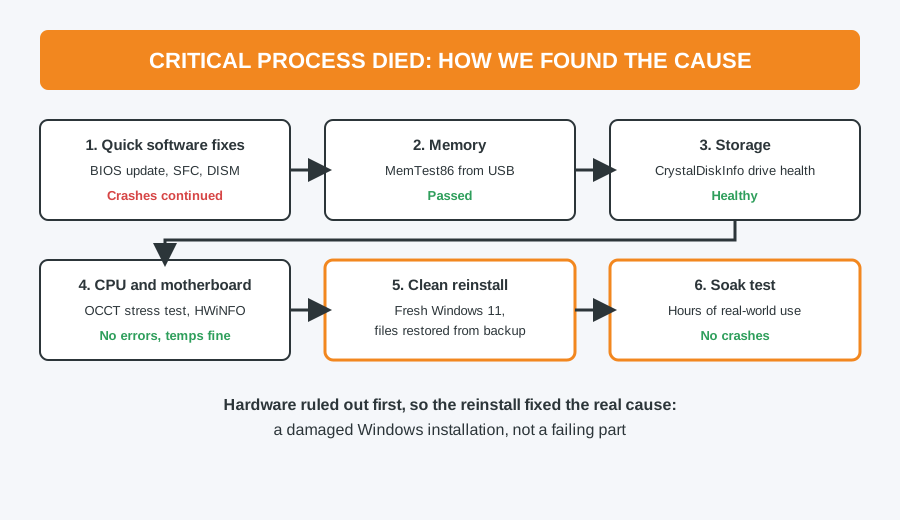
- Quick software fixes first. We updated the BIOS and ran the SFC and DISM repair tools (the same ones in our Windows Update guide). The crashes carried on, which pointed either to hardware or to damage those tools couldn’t repair.
- Memory. MemTest86 runs from a USB stick outside Windows and tests every part of the RAM. It passed.
- Storage. CrystalDiskInfo reads the drive’s own health data (SMART), which shows warning signs such as reallocated or failing sectors. The drive was healthy.
- Processor and motherboard. An OCCT stress test pushed the system to full load, while HWiNFO watched temperatures, voltages and hardware error reports. No errors, and temperatures stayed well within safe limits.
- Clean reinstall. With the hardware ruled out, the remaining suspect was the Windows installation itself. We backed up the customer’s files, installed a fresh copy of Windows 11, and restored their data. As with every repair, we keep that backup for 30 days afterwards, just in case.
- Soak test. Rather than handing it straight back, we ran several programs on it for hours to make sure the fault had really gone. It didn’t crash once.
Why the order matters
It would have been quicker to reinstall Windows straight away, and it might well have worked. But if the real cause had been a failing drive or bad memory, the crashes would have come back within days, possibly taking the customer’s files with them. Testing the hardware first means the fix is the right one, and the customer isn’t back in a week later.
Getting this error yourself?
- Back up your files now. If the PC still starts, copy anything important to an external drive or cloud storage. Our backup guide shows how.
- Note when it happens. After an update, during games, or at random? It helps narrow the cause down.
- Run SFC and DISM. These are safe and fix many software causes.
- Don’t reset the PC as a first step. If the cause is hardware, you’ll lose your setup and still have the crashes.
If the crashes continue, bring it in. We’ll find the cause properly before fixing it, with our standard £40 labour charge (£50 for Apple). See our Windows installation and repair service.
Computer Repair Bolton
30 Church Road, Bolton
07538 513 916
support@computer-repair-bolton.co.uk
Book a repair online