A new graphics card is one of the best upgrades for a gaming PC, but fitting it is only half the job. We recently had a PC in after its owner upgraded to an RTX 5070 Ti and found the mouse playing up afterwards. It turned out fine, but it’s a good reminder of what to check after any graphics card upgrade.
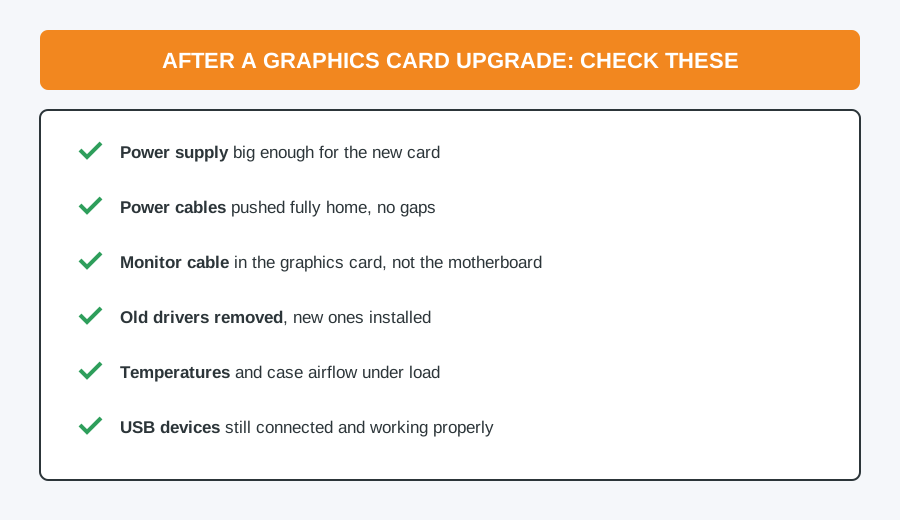
1. Is your power supply big enough?
Modern graphics cards draw a lot of power. The customer above had sensibly upgraded from a 500W power supply to an 850W one, because NVIDIA recommends at least 750W for the 5070 Ti. Check your card maker’s recommended wattage and compare it with the label on the side of your power supply. An undersized or tired power supply can cause crashes, sudden restarts and odd behaviour from USB devices under load.
2. Are the power cables fully home?
Most new cards use a 16-pin power connector, and it must be pushed in until it clicks, with no gap at the latch. A partly seated connector can overheat, and this is the usual cause of the melted-connector stories you may have read about. If your card uses separate 8-pin leads instead, use one dedicated cable per socket where possible, rather than a single cable split into two.
3. Is the monitor plugged into the right place?
It sounds obvious, but it catches people out all the time. The monitor cable needs to go into the ports on the graphics card, low down on the back of the PC, not the ones on the motherboard higher up. Plugged into the motherboard, you’re not using your new card at all.
4. Clean out the old drivers
Install the latest driver from NVIDIA, AMD or Intel rather than relying on whatever Windows picks up. If you’ve switched brands, for example from AMD to NVIDIA, remove the old drivers completely first. Leftovers can cause stuttering, crashes and input lag that feels like missed clicks. While you’re at it, updating the motherboard’s chipset drivers, and the BIOS if an update is available, helps the new card run at its best.
5. Watch the temperatures
A more powerful card puts more heat into the case. Run a game or benchmark for half an hour and check the card’s temperature with a free tool such as HWiNFO. If things are running hot, the case may need more or better-placed fans: see our guide to PC case airflow.
6. Check your USB devices
Big modern cards sit close to the motherboard’s USB and front-panel connectors, so it’s easy to knock a lead while fitting one. If your mouse or keyboard starts misbehaving afterwards:
- Plug them into the USB 2 ports (usually black) rather than USB 3 (usually blue). Wireless receivers in particular can suffer interference from USB 3 ports.
- If the mouse is wireless, move the receiver away from the back of the case, or use a short extension cable to bring it up onto the desk.
- Try a different mouse. If the problem goes away, it’s the mouse, and the timing was just coincidence. Worn left-click switches are a very common fault.
Want it done for you?
We can fit your new graphics card, check your power supply is up to it, install the right drivers and test it under load, for our standard £40 labour charge. Still choosing a card? Read our graphics card buying guide, or have one built into a custom gaming PC.
Computer Repair Bolton
30 Church Road, Bolton
07538 513 916
support@computer-repair-bolton.co.uk
Book a repair online