A customer rings to say the email they sent you bounced back as undelivered — but it’s sitting right there in your inbox. It sounds impossible, but it’s one of the most common email problems we’re asked about, and it nearly always has a simple explanation: your email is being delivered to more than one place, and only one of those copies is failing. This guide explains how that happens, how to read the bounce message to find the cause, and how to fix it.
What is a bounce, exactly?
A bounce (technically a “non-delivery report”) is an automatic email sent back to the sender when a mail server refuses to accept a message. Crucially, it’s sent by whichever server refused the email — not necessarily yours. So if your email system passes a copy of the message on somewhere else, and that server says no, the person who wrote to you gets a bounce even though your own inbox received it perfectly well.
How can an email bounce and still arrive?
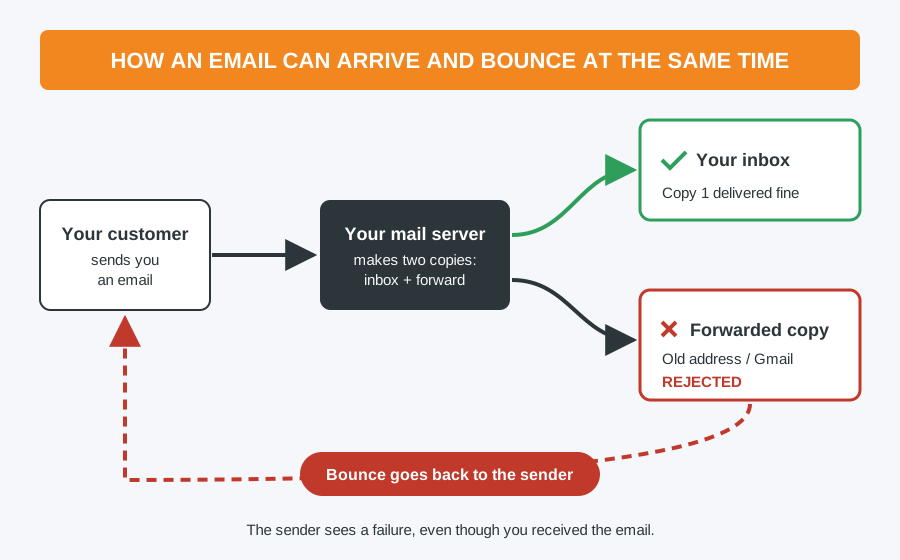
In almost every case, one of these four things is going on:
- Forwarding to another mailbox. Your mailbox keeps a copy and forwards one on — to an old work address, a Gmail account, or a colleague. The forwarded copy is refused and the bounce goes back to the original sender. Gmail and Outlook.com are especially strict: because the forwarding server is passing on mail “from” someone else’s domain, the email can fail the sender’s SPF and DMARC security checks and be rejected. This is by far the most common cause.
- An alias or group address with a dead member. If your address is part of a group (such as info@ or sales@) that also includes an old, deleted or full mailbox, everyone else gets the email but that one address bounces.
- An old or extra MX record. MX records tell the internet which servers receive email for your domain. If you changed email provider and the old server is still listed, some senders’ mail will try the old server and be refused, while others reach the new one.
- A rule or auto-reply. Less common, but an inbox rule or out-of-office that sends a copy to a bad address can produce the same symptom.
How to read a bounce message
The fastest way to find the cause is to ask one of the people who got a bounce to forward it to you (or send a screenshot). It will look technical, but you only need three pieces of information from it:
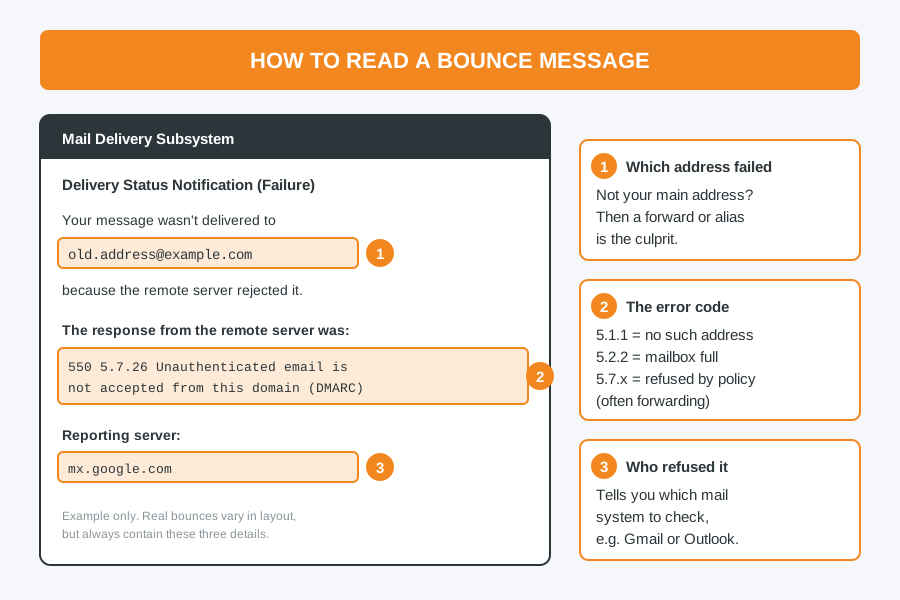
- The address that failed. If it isn’t your main email address, you’ve found your forward or alias straight away.
- The error code — a number like
550 5.1.1. See the table below. - The server that refused it. This tells you which system to look at: a Google server means the problem is at the Gmail end, Microsoft’s means Outlook, and so on.
| Error code | What it usually means |
|---|---|
5.1.1 | The address doesn’t exist — a typo, a deleted mailbox, or an old forwarding address |
5.2.2 or 4.2.2 | The mailbox is full |
5.7.1, 5.7.26 or 5.7.509 | Refused for security reasons, usually failed SPF or DMARC checks — the classic sign of forwarding |
5.7.1 mentioning spam or a blocklist | The sending server has been flagged as a source of spam |
Starts with 4 (e.g. 421, 451) | A temporary problem. The server will keep retrying, so this is usually a “delayed” warning rather than a real bounce |
How to fix it
1. Check for forwarding. Look in your webmail settings (in Gmail: Settings → See all settings → Forwarding and POP/IMAP; in Outlook.com: Settings → Mail → Forwarding). If your email comes with your website hosting, also check the Forwarders section of your hosting control panel — forwards set up there years ago are easy to forget.
2. If you need the forward, do it differently. Rather than forwarding everything to Gmail or Outlook, add your mailbox to your email app or phone as a second account using IMAP, so you see everything in one place without any forwarding at all — see our guide to IMAP vs POP3. Note that Gmail has withdrawn its old “check mail from other accounts” feature, so that’s no longer an option. If forwarding is essential, ask your email or hosting provider whether they support SRS (Sender Rewriting Scheme), which allows forwarded mail to pass the security checks.
3. Check group and alias addresses. Make sure every address in a group or alias still exists and has space. Remove anyone who has left.
4. Check your MX records. A free online “MX lookup” tool will list the mail servers for your domain. Only your current email provider should appear. If an old provider’s server is still listed, it needs removing from your domain’s DNS settings — but take care, as a mistake here can stop all your email arriving. If you’re not sure, get help.
5. Check rules and auto-replies. Look for any inbox rule or out-of-office that sends or copies mail to another address.
Bounces for emails you never sent?
That’s a different problem. If you’re receiving bounces for messages you didn’t write, spammers are probably forging your address as the sender. Setting up SPF and DMARC records on your domain helps other mail servers spot the forgeries. If you think the emails might really be coming from your computer, see our guide to the signs of malware, and make sure your email account is protected with two-factor authentication.
Email still misbehaving? Computer Repair Bolton can help
We sort out email problems for homes and small businesses across Bolton every week: reading bounce messages, untangling old forwards and aliases, checking DNS and MX records, and setting your email up properly on all your devices. Most jobs are a flat £40 labour charge. Book a repair or drop into the shop at 30 Church Road, Bolton.
Computer Repair Bolton
07538 513 916
support@computer-repair-bolton.co.uk